Analytics
Why don't my A/B test orders match Shopify?
Shopify and your A/B test may count different orders.

Shopify and your test often count different groups of orders
A Shopify report may count all store orders, while a test report may count only valid orders linked to shoppers tracked in the test.
One merchant had removed point-of-sale orders from Shopify, but the numbers still did not match. The merchant was counting orders by fulfillment date instead of order date. The comparison also used “anything except point of sale” on one side and “Online Store only” on the other. Those are different groups of orders.
Before comparing totals, make sure both reports use:
the same start and end time;
the date the order was placed, not fulfilled;
the same sales channel;
the same test dates and filters;
the same type of report.
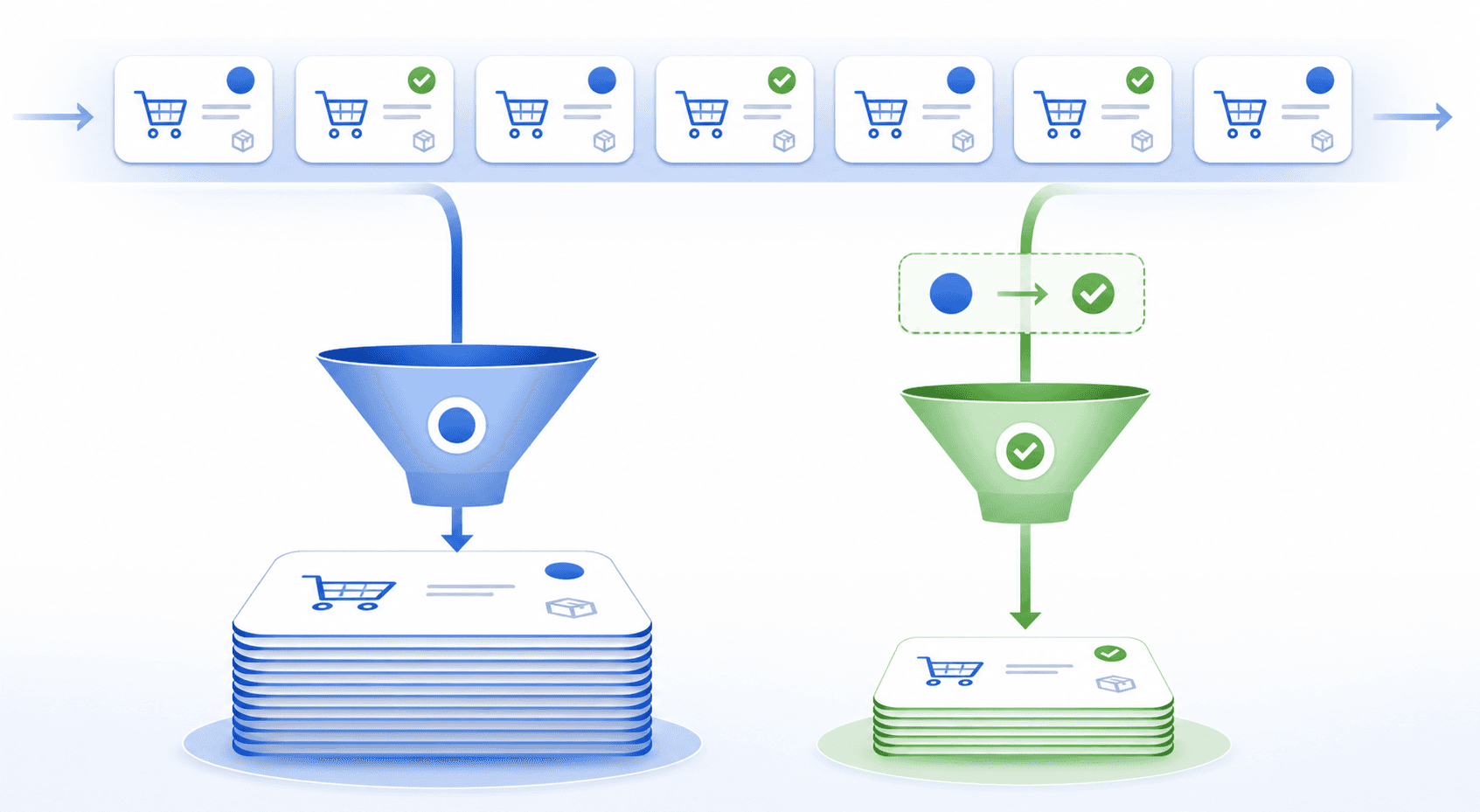
Test reports may remove orders that Shopify includes
An order may be missing because the tool could not link it to a tracked shopper or because a test rule removed it.
In one case, the possible reasons included:
the test was paused when the order was placed;
the order was a draft, fully refunded or voided;
the order did not contain a product covered by the test;
the shopper was in another test that could not overlap;
the order had a tag on the store's exclusion list;
the visit came from internal or test traffic.
The cause will differ by test. This list shows what to check, but it does not explain a gap on its own.
Order tags show test assignment, not report inclusion
A test ID or group tag can show where a shopper was assigned. It does not prove that the order passed every rule used by the report.
If you use Intelligems, these fields are called igId and igTestGroup. The first points to the tracked shopper. The second records the shopper's test group.
One merchant found hundreds of tagged orders that were missing from the dashboard. Intelligems support checked them with the data team. Most came from shoppers who went straight to checkout more than 48 hours after their last tracked visit.
Support approved the tags for that merchant's own math only after checking the missing orders. Do the same check before making that choice for your store.
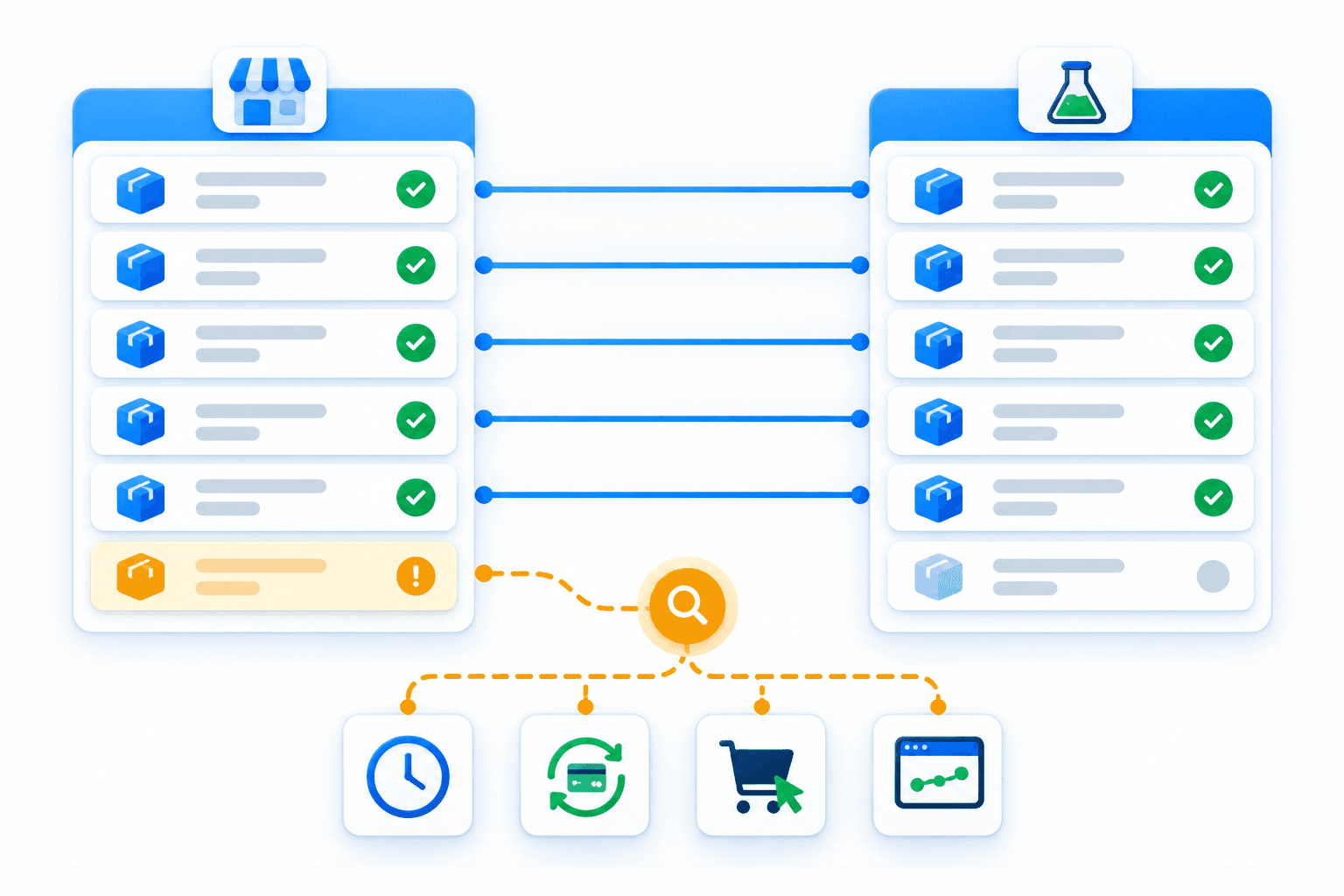
Find the gap by matching orders one by one
Compare the test's order-level report with Shopify for the same period, then give a clear reason for every extra order.
If your testing tool offers an order export, start there. If you use Intelligems, its export shows the orders counted in the test along with their group, revenue and session details.
For a full-store report:
Start with Shopify orders from the same time and sales channel.
Account for time differences, refunds, voids and gift-card-only orders.
Compare the result with your tool's all-orders view, if it has one.
Remove orders that could not be linked to a tracked shopping session. Then compare the result with the main report.
If you use Intelligems, the wider view is called “All Orders” and the default view is tied to tracked sessions. In one June check, the analytics team found every Shopify order in the data. The views differed because they used different rules. That result applied to one merchant, not every gap.
No mismatch percentage is always safe
The cases behind this post do not support any fixed percentage as an acceptable gap.
In one case, the first answer did not explain the full difference. Intelligems support reviewed the missing orders and found the 48-hour checkout issue. In another, support sent the problem for a deeper review after the merchant fixed the Shopify comparison.
Before sharing a test result, write down three things: Shopify shows X orders, the test shows Y orders, and these are the reasons for the gap. If you cannot explain the last part, the check is not finished.
AB Testing
Analytics
Ecommerce Strategy