Shipping Testing
Will a shipping test break my Google Shopping feed?
Not if Merchant Center has its own rates before launch.

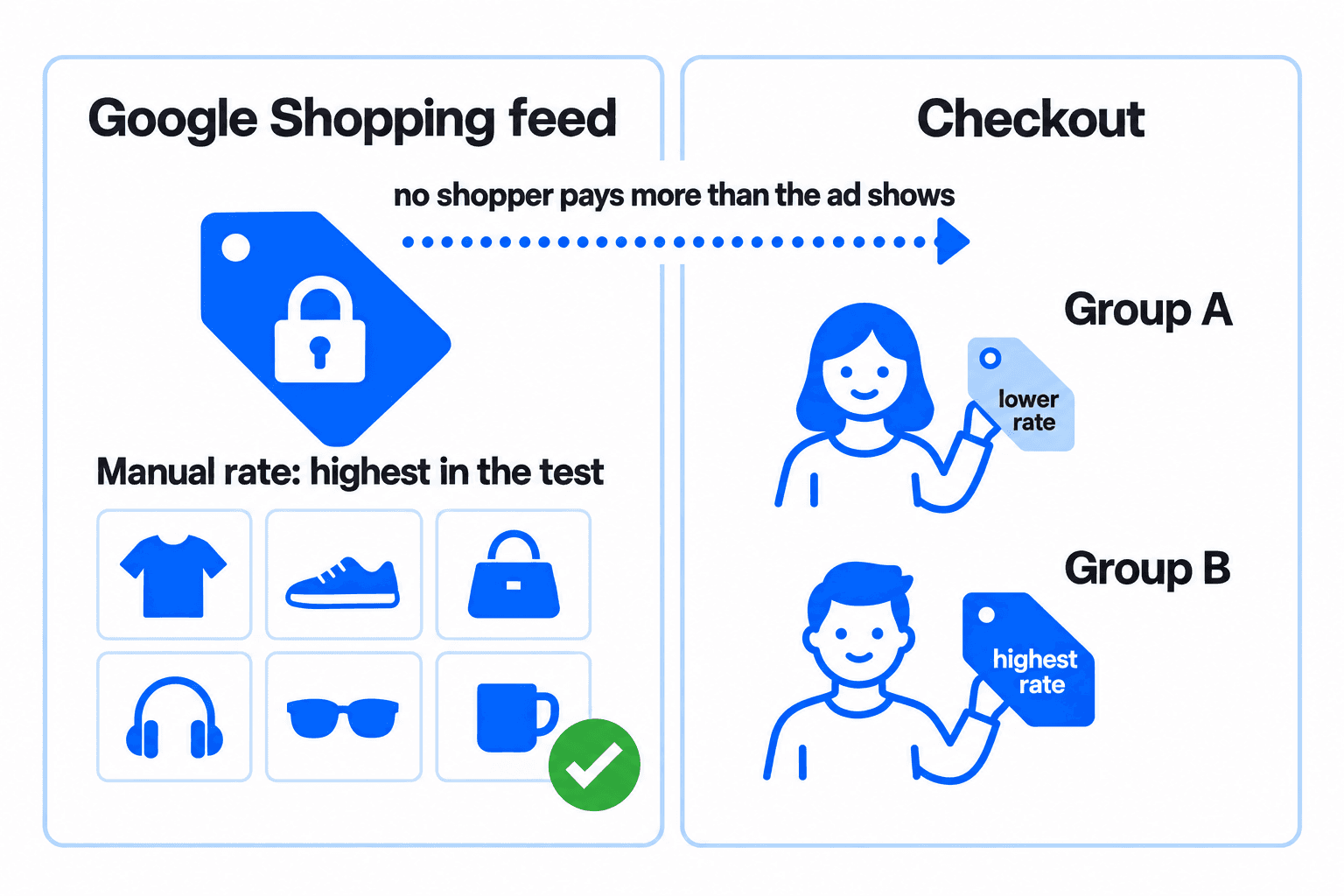
Not if you give Merchant Center its own rates before launch: a shipping test serves each group's rates through the testing app instead of Shopify's native rates, and Google reads only native rates, so a manual entry in Merchant Center keeps the feed syncing through the whole test. Enter the least favorable rates from the test, so no shopper pays more than the ad shows.
If your paid team just asked whether the ads are safe during the test, this is the setup that lets both run.
A shipping test and your Google Shopping feed run together once Merchant Center has its own rates
Intelligems support has walked merchants through this setup since 2024. Without it, Merchant Center can lose sight of your shipping while the test runs and disapprove products until the native rates return. With it, Google has a fixed rate to read and the test carries on underneath.
Google reads shipping from your Shopify rates, and a shipping test serves its rates through the app instead
Merchant Center syncs shipping from the rates you set natively in Shopify. To show each group its own rate, the testing app backs up the native rates and removes them. It then serves each group's rate through a carrier service. Google cannot import rates generated by a third-party Shopify app, so an automatic sync finds nothing to read. When you pause or end the test, the app restores the native rates. Intelligems engineering confirmed this in September 2026.
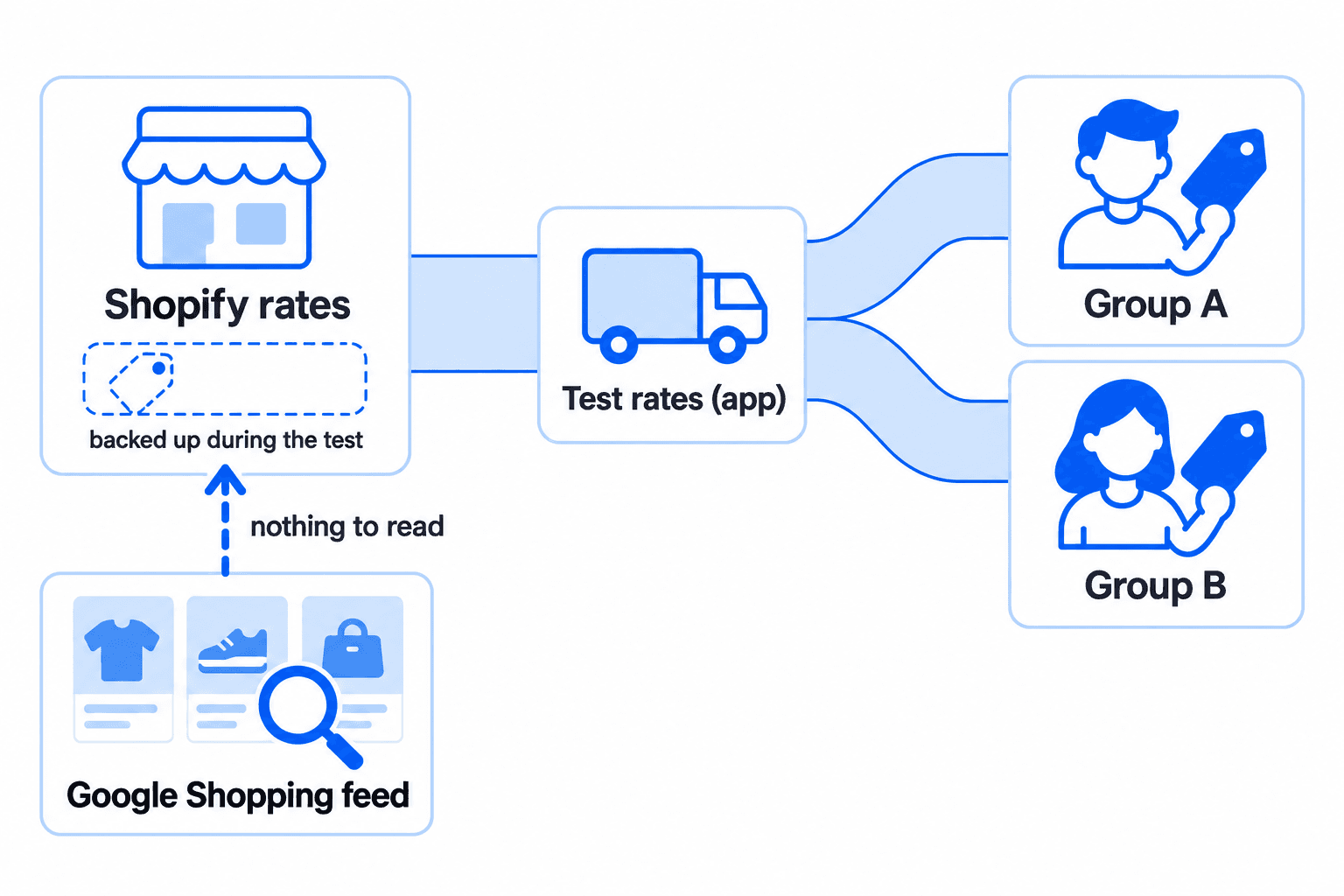
Automatic shipping sync in the Google & YouTube channel is the setup that needs the manual step
Open the Google & YouTube sales channel in Shopify and look at how shipping reaches Merchant Center. A rate you entered in Merchant Center yourself survives the test, because Google never looks at the native rates for it. If a feed already dropped products during a test, the error sits under your shipping zones and names the app's shipping option.
Enter the least favorable test rates in Merchant Center before launch, then revert them when the test ends
In Shopify's Google & YouTube channel, switch shipping from automatic sync to manual.
In Merchant Center, enter a rate for each zone in the test. Use the highest rate or the highest free-shipping threshold you are testing.
Launch the test.
When the test ends and your native rates are restored, revert the manual entry.
Merchant Center is fine with showing a higher rate than the site charges, so a visitor in a cheaper group gets a better deal than the ad promised, never a worse one.
If products already dropped mid-test, pausing brings them back at once and the manual rate lets you restart
Pausing puts your original rates back and Merchant Center resyncs. The cost is a gap in the test: it stops collecting orders until you relaunch, and you cannot start another shipping test in its place. Enter the manual rate while the test is paused, then restart it, and you keep both the ads and the data.
Add the Merchant Center rate to your pre-launch checklist and bring your zones and test rates to Intelligems first
Make the manual rate a fixed step before every shipping test. If you test with Intelligems, bring the zones and the rates or thresholds in your planned test to the team before launch. They can confirm the least favorable rate for each zone, so the number you enter in Merchant Center is right and the test goes live with the feed intact.
AB Testing
Expert Guide
Ecommerce Strategy